guide
how vivliothiki works
vivliothiki is a catalogue of every book on your shelves. All it asks of you is to point your phone’s camera at the barcode on the back of a book: the book catalogues itself, with everything worth knowing — title, author, translator, publisher, cover — in Greek and in every other language. Once your books are scanned, your library is on your phone and on your computer. It works without a signal, and you can share it with the people you live with, as you see fit.
vivliothiki is in a closed test, open by invitation to members of the 241020 Club. The library in these pictures is invented and its covers were drawn for this guide; the screens are the app as it really looks.
1 · getting in
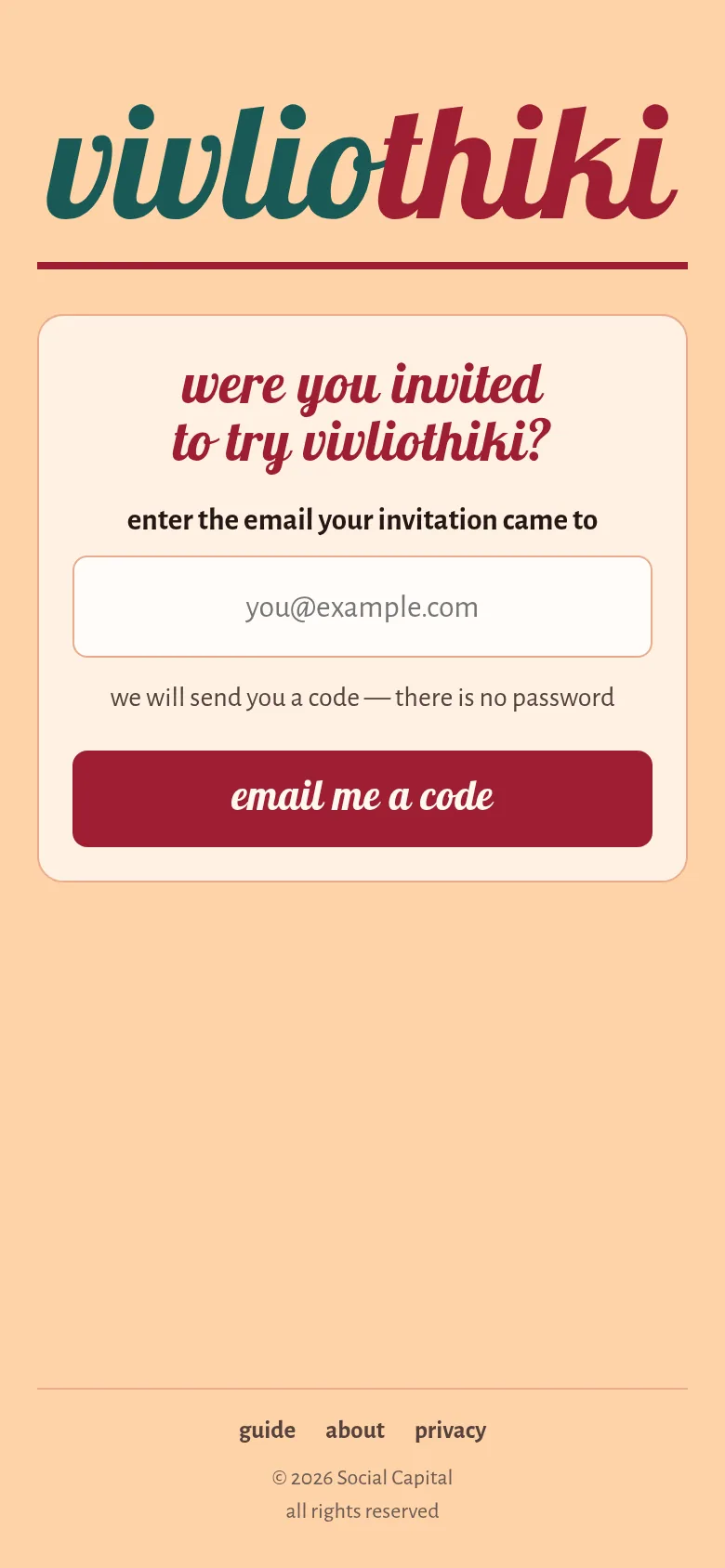
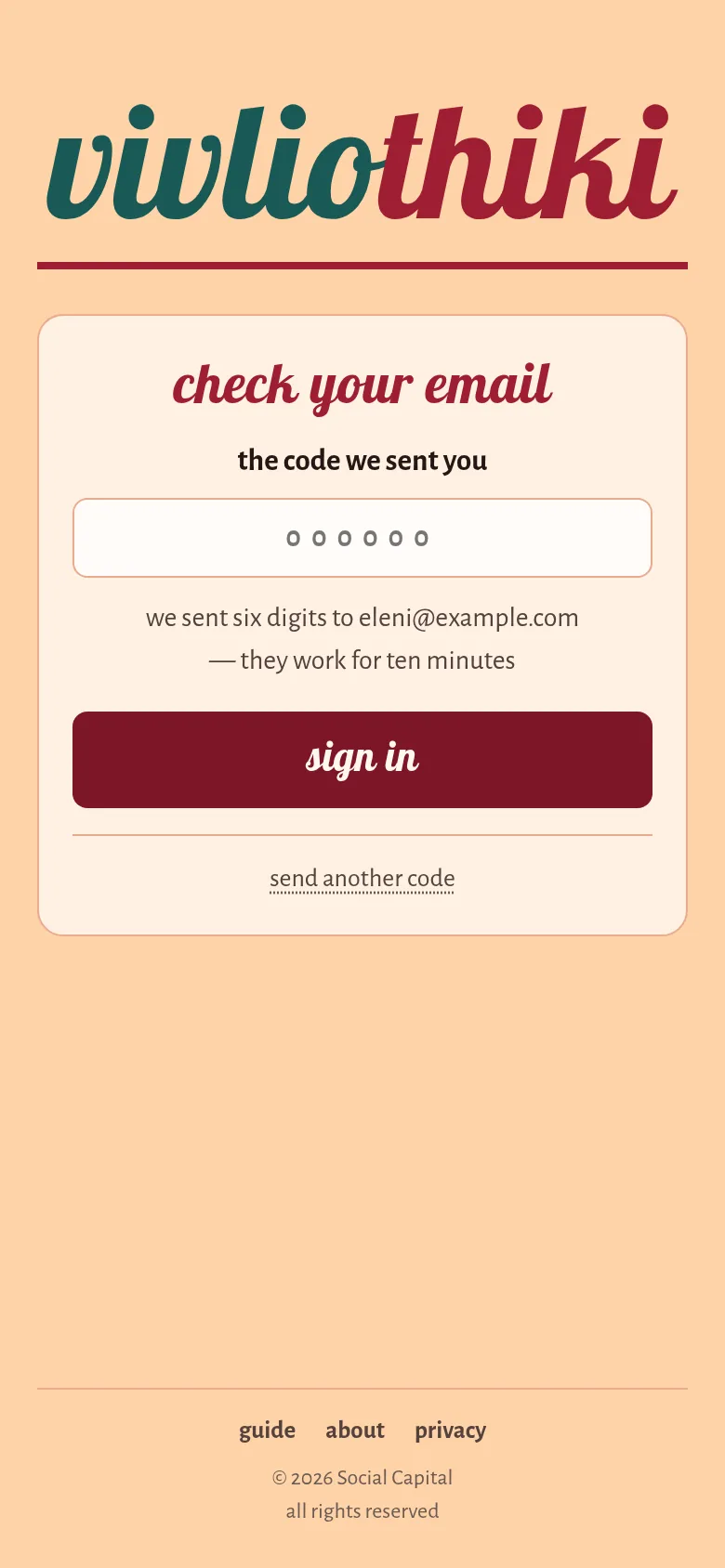
There is no password. Open vivliothiki.com, type the email address your invitation came to and press email me a code. Six digits arrive within a minute — look in spam if they do not. Type them and press sign in. A code works once, for ten minutes; a device stays signed in for a year after you last used it.
If you were invited to keep a library of your own, you name it next. If you were added to somebody’s library, its books start arriving on your device, with a bar showing how many are left.
On your phone, make it an app
On an iPhone, in Safari: Share › Add to Home Screen. On Android, in Chrome: ⋮ › Add to Home screen (or Install app). vivliothiki then opens full-screen like any other app, and works with no signal: what you change offline goes up the next time there is one.
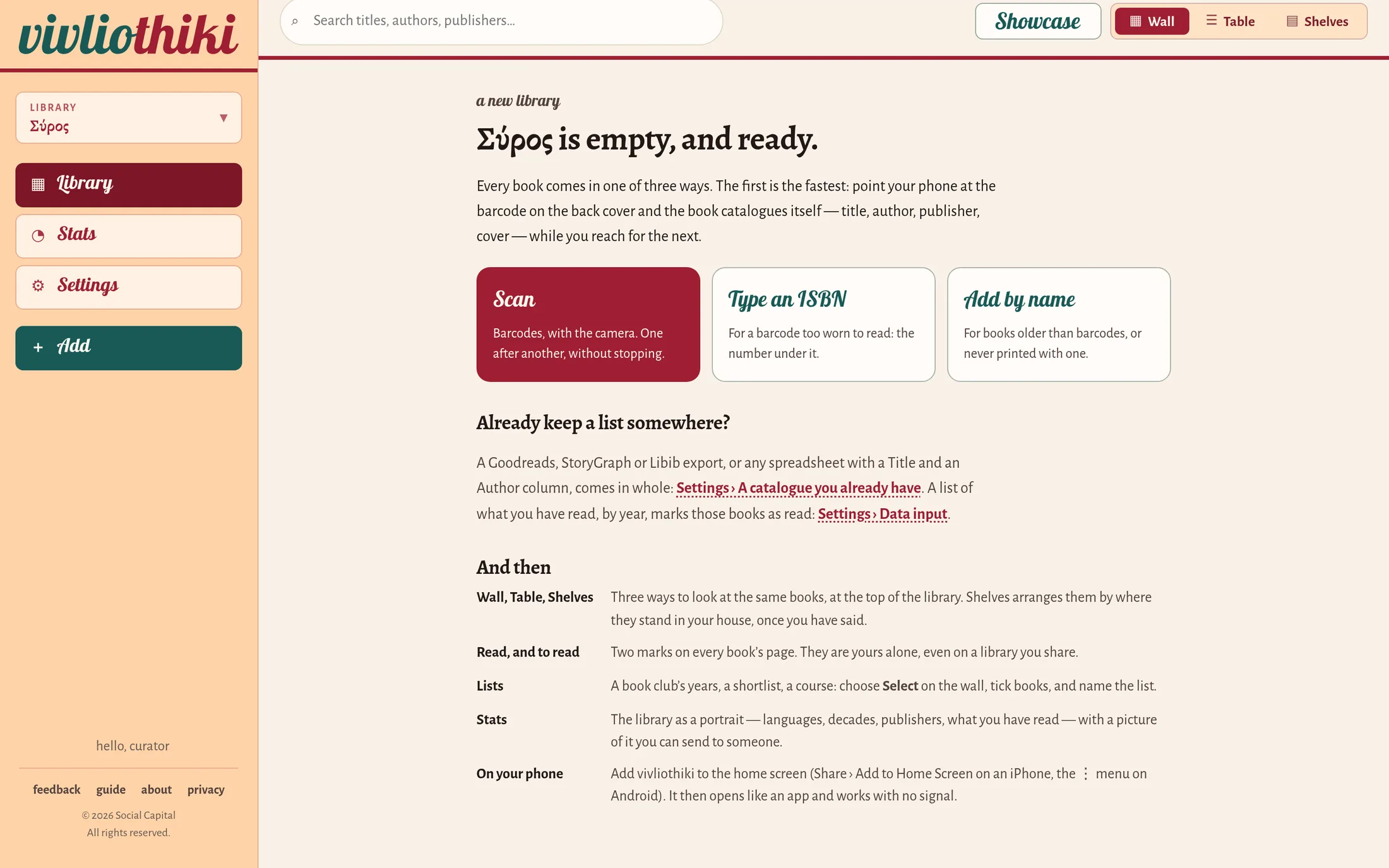
An empty library opens on a short welcome with the three ways to add a book, and a line on each part of the app. It goes away with your first book.
2 · the library at a glance
 12345678910111213
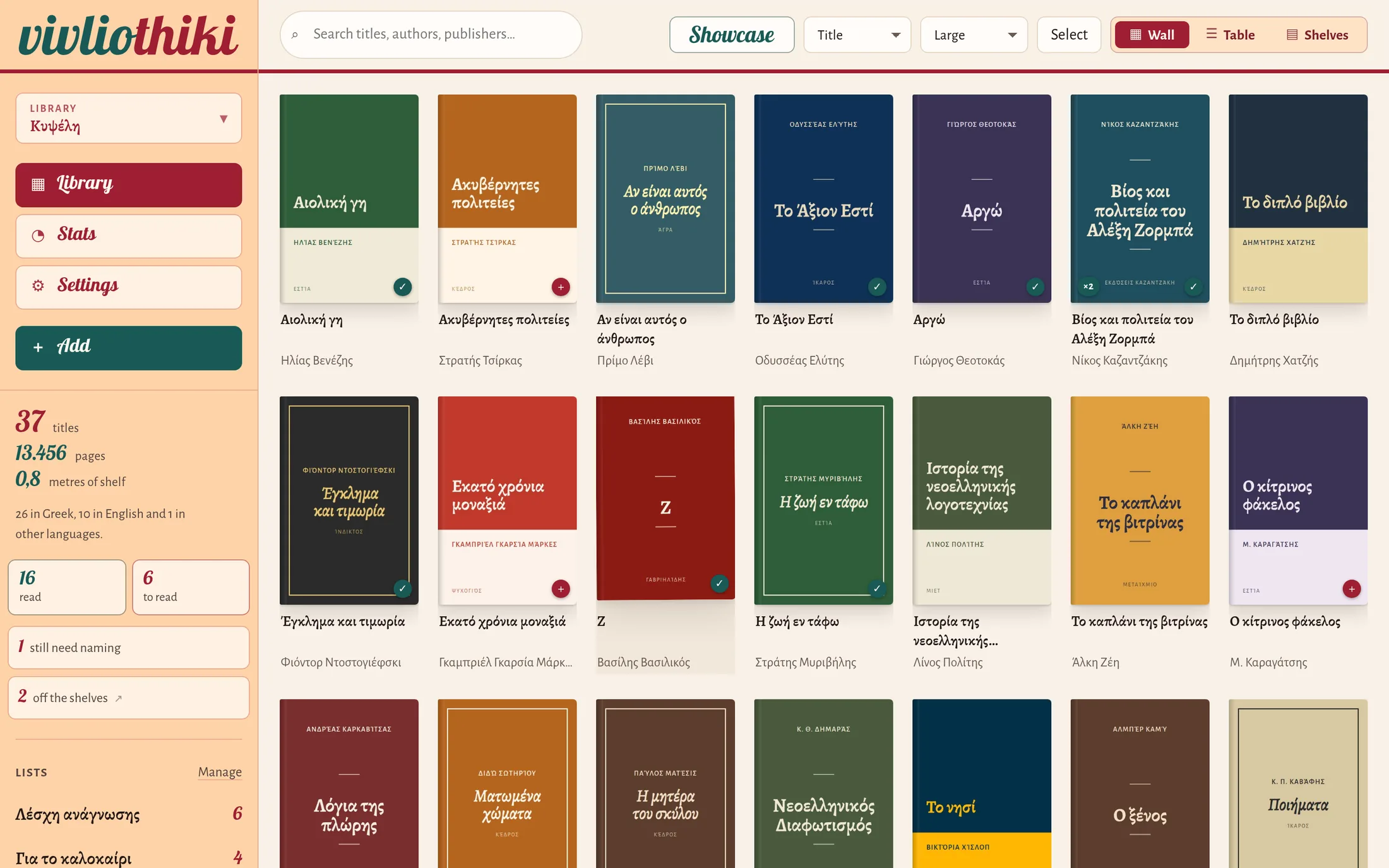
- Library — the library you are looking at. Tap to switch to another, or to add or rename one. You can keep as many as you like — home, office, a summer house.
- Library, Stats, Settings — the three places in the app.
- Add — scan barcodes, type an ISBN, or add a book by name.
- The library in figures: titles, pages, metres of shelf, and its languages.
- read and to read — your own marks. Tap one to see only those books. Below them, still need naming (books still waiting for a title) and off the shelves (books that have left your collection).
- Lists — tap a list to see its books; Manage goes to Settings.
- Search — any word of a title, author, publisher, series, subject, ISBN, note or shelf. Accents and capitals do not matter. On a computer, / jumps here.
- Showcase — one book at a time, at random: a way of wandering through your own collection.
- Sort — by title, author, publisher, year, length, date added, shelf, language, or whether you have read them.
- Size — of the covers, from Large to Smallest, remembered on each device.
- Select — choose several books and do something to all of them: put them on a shelf or a list, or take them off the shelves.
- Wall, Table, Shelves — three ways to look at the same books.
- A book. The small marks on a cover: ✓ read, + want to read, ×2 two copies, λ still being looked up, ? no catalogue knows it yet.
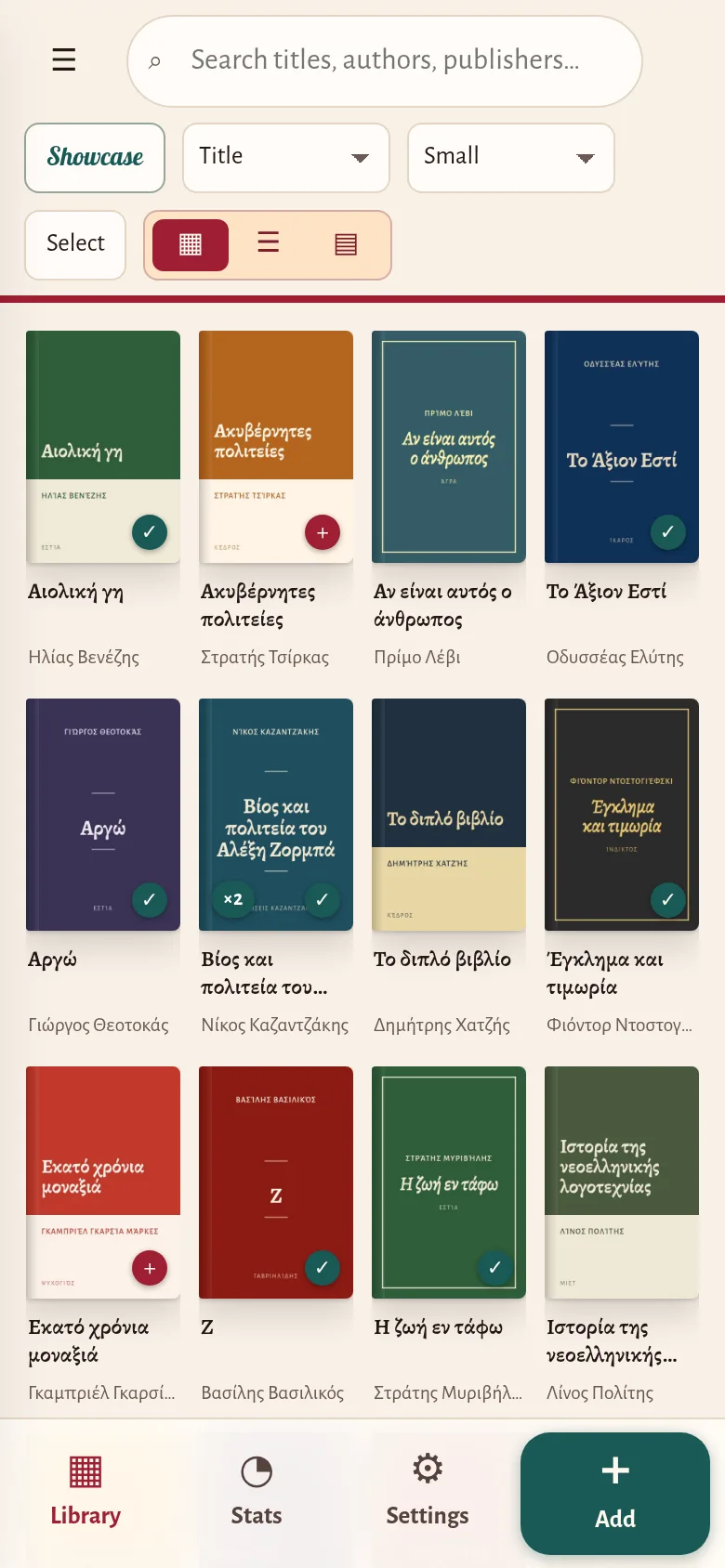
On a phone the same things are arranged for the thumb: the four places along the bottom, and the library’s figures and lists behind ☰.
 12345678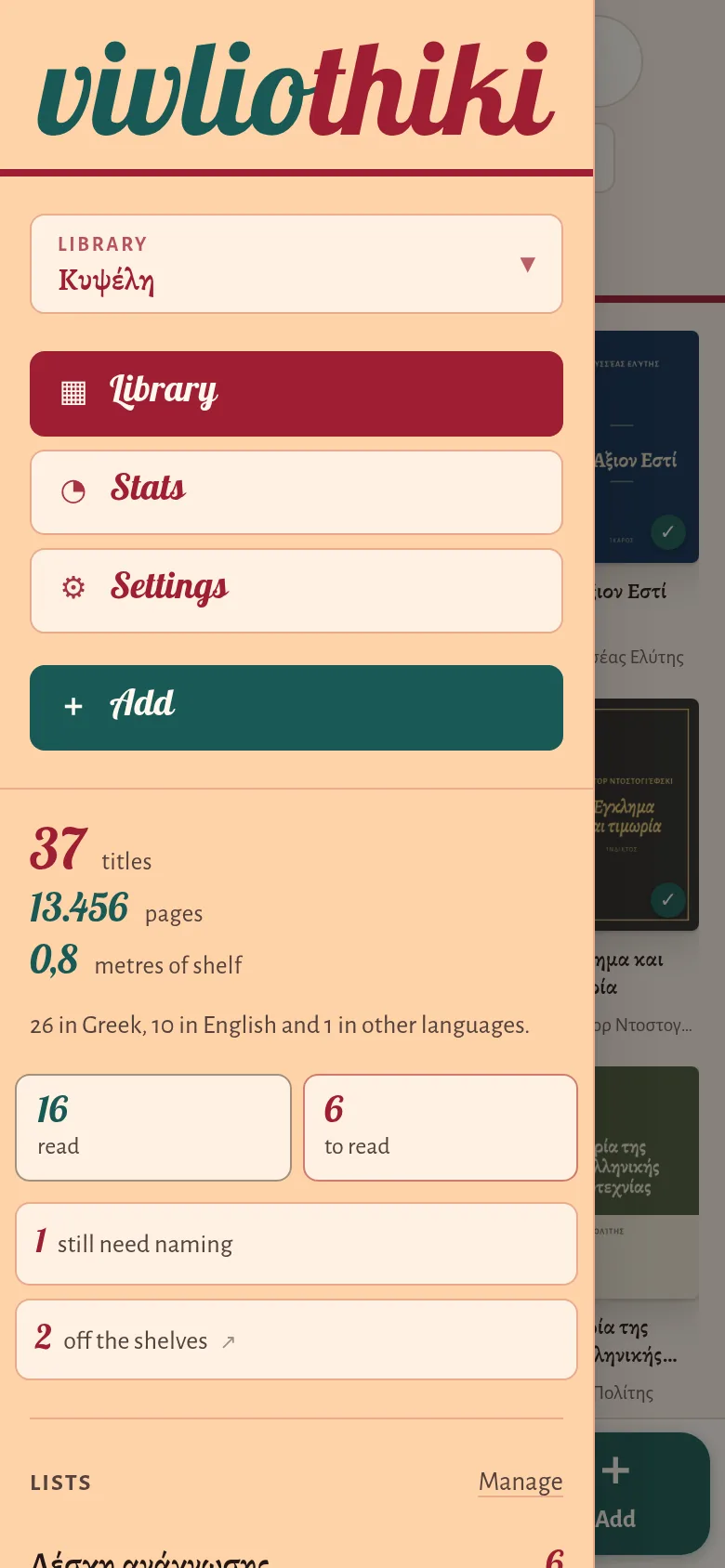
- ☰ — the menu: which library, the figures, read and to read, lists.
- Search.
- Showcase.
- Wall, Table, Shelves.
- Library.
- Stats.
- Settings.
- Add.
3 · adding books
Press Add, then Start scanning, and allow the camera. Point it at the barcode on the back cover; there is no button to press for each book — every barcode it reads is a book, and the count goes up. You can sweep along a shelf without stopping. A laptop’s camera works too.
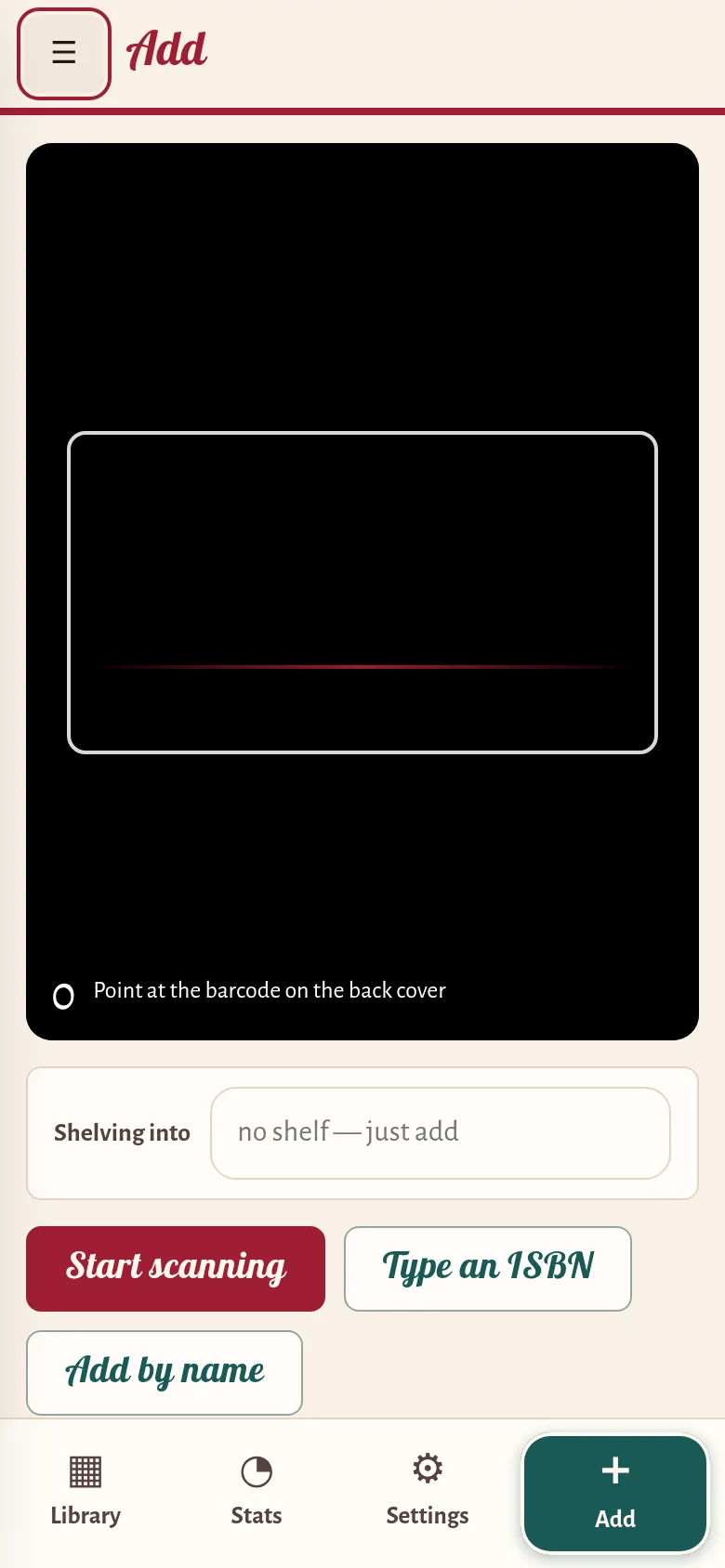
- Shelving into — if you like, type the name of a shelf before you scan, and every book goes onto it. A book already in the library is moved there, not added twice. Leave it empty to shelve nothing; all of this can be changed later. But the quickest way to record where everything stands is to scan one bookcase at a time.
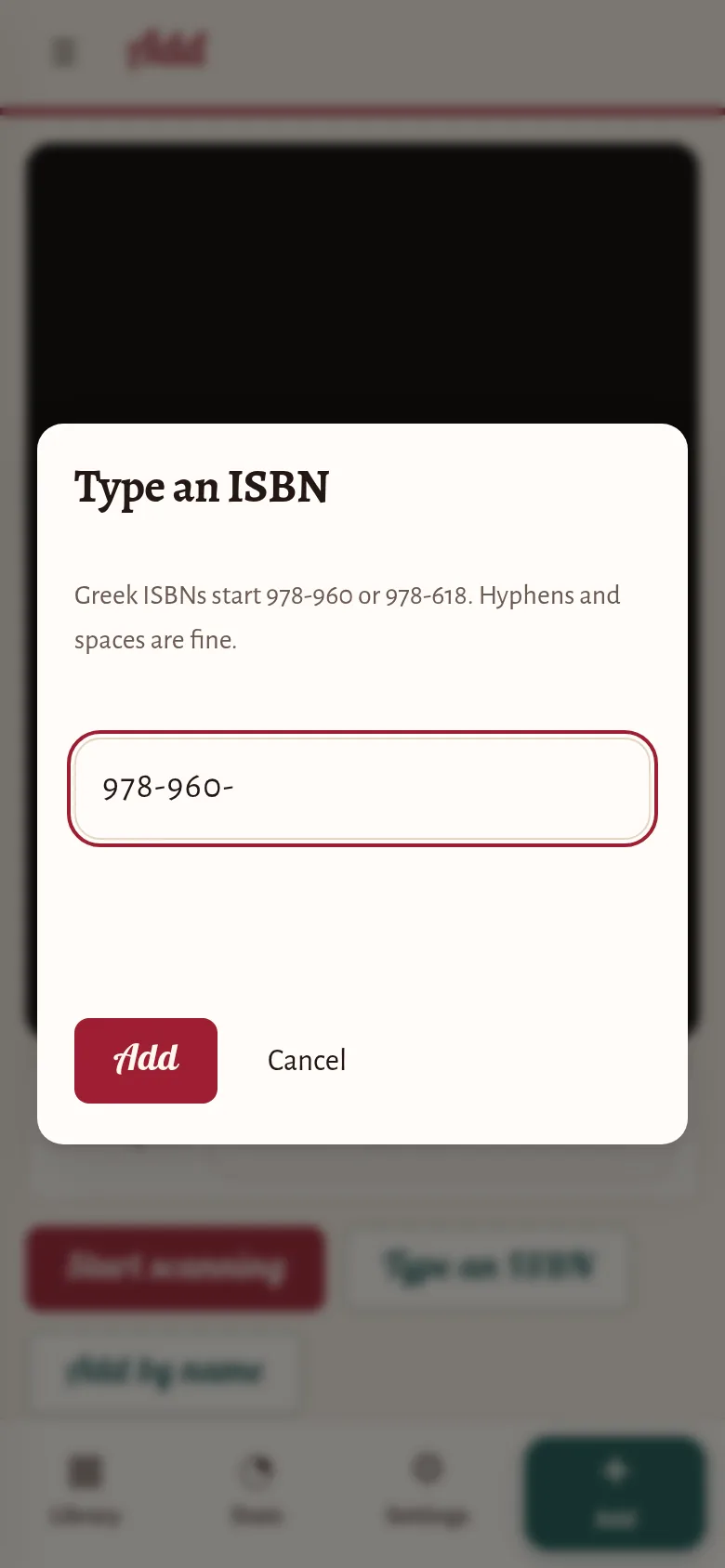
- Type an ISBN — when a scan will not take, or there is no barcode: the thirteen digits under the barcode, or on the copyright page inside. Greek ISBNs always start 978-960 or 978-618. The box stays open for the next one.
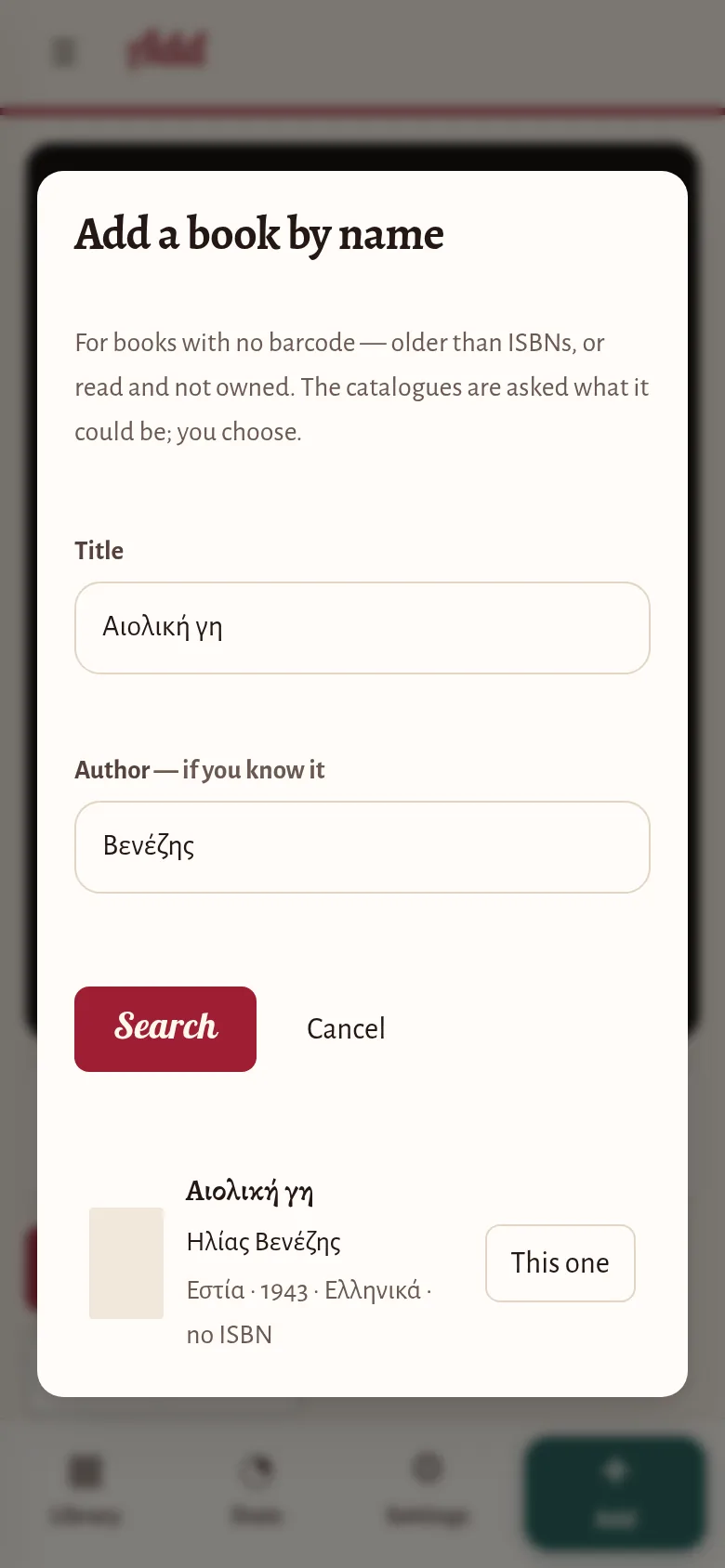
- Add by name — for books older than barcodes, or never printed with one: type the title (and the author, if you know it), press Search and choose This one — or Add as typed and fill in the rest yourself.
- Scanning a book you already have is no disaster: it adds a copy, and you can correct the number of copies at any time.
Each book is then looked up in public catalogues, Greek and international, in the background — you can go on scanning, or close the app. While it is being looked up a book shows λ. One that no catalogue knows shows ? and Tap to name: open it and type its title yourself, if you like. still need naming, in the menu, gathers them all.
4 · a book’s page
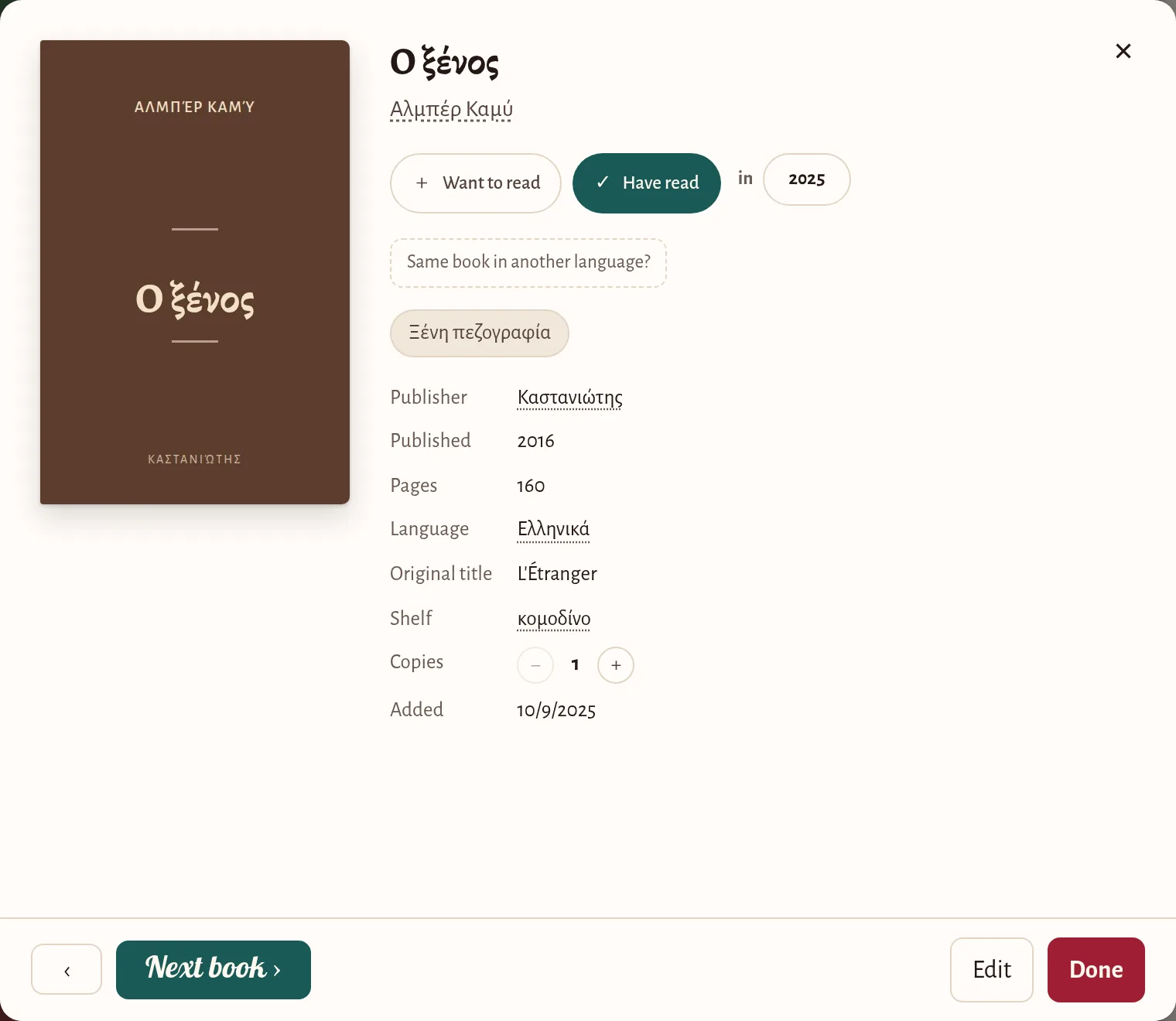
Tap a cover, or a row in the table, and the book’s page opens.
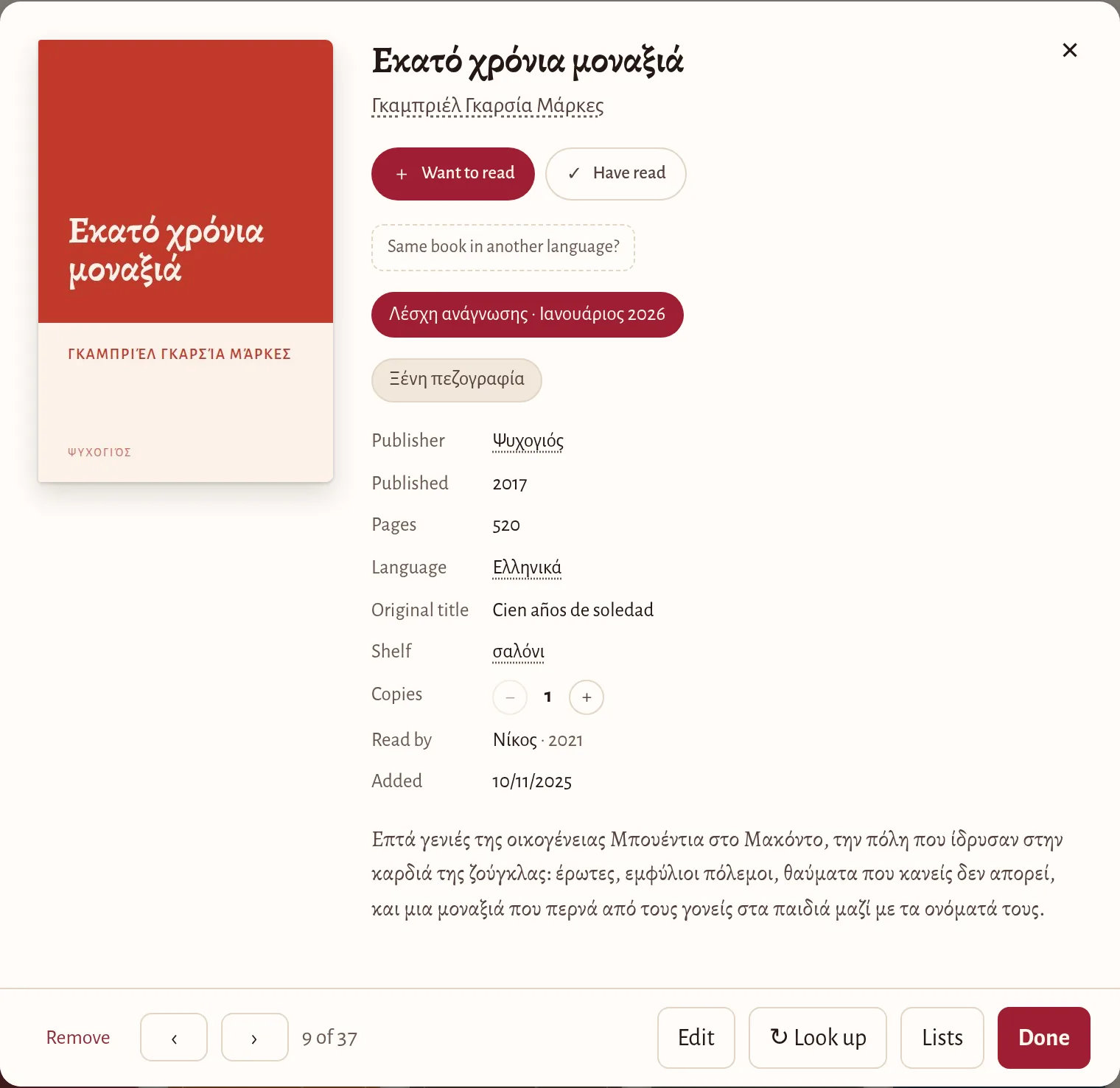 12345678910111213141516
- The cover.
- Want to read and Have read — your marks: the books you mean to read, and the ones you have. With Have read, you can note the year you read it. Tap a mark again to take it off.
- Same book in another language? — if you have a book in another language and its Greek translation too, or two editions of one book with different ISBNs, link them here; marking one then marks the others.
- The lists the book is on (with the month, on a list that carries dates, like a book club’s). Tap one to see the list.
- Publisher, language, shelf, subject and author are links: tap the author’s name, say, to see every book of theirs.
- Shelf — where it stands in your house.
- Copies — how many you have scanned, with − and + to put it right.
- Read by — what the other people on this library have read, if there are any.
- Added — when the book was first scanned into the app.
- About the book: a description drawn automatically from the public catalogues, with the rest of its details.
- Remove — takes the book off the shelves. Where do books go when they leave? On loan, To give (set aside to give away) or Gone (for good). Nothing is deleted.
- The arrows ‹ › step to the previous and the next book of what you are looking at; on a computer, so do the arrow keys.
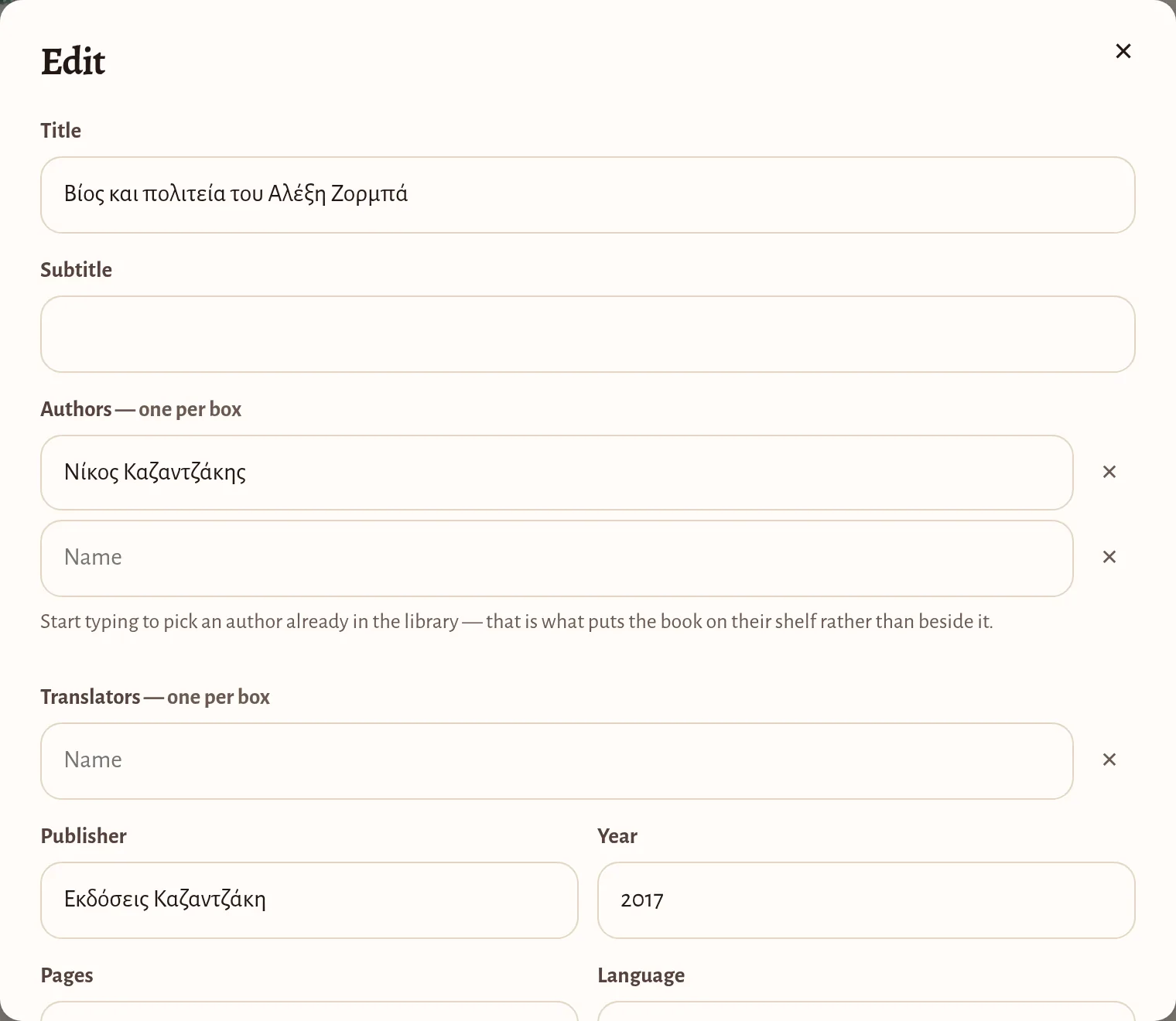
- Edit — change anything.
- Look up — ask the catalogues again for anything that may be missing.
- Lists — put the book on lists, or take it off them.
- Done — close the page.
5 · wall, table, shelves
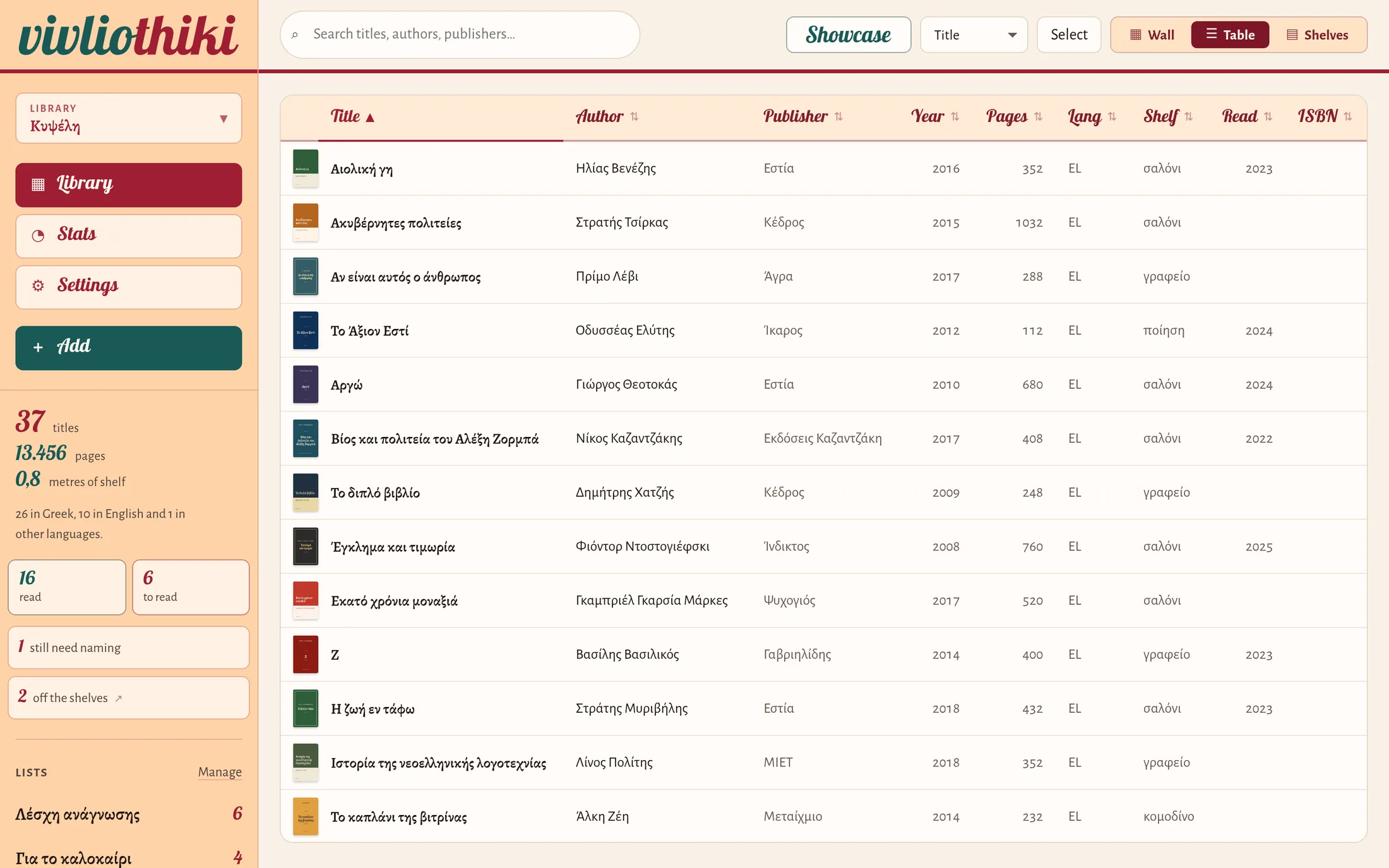
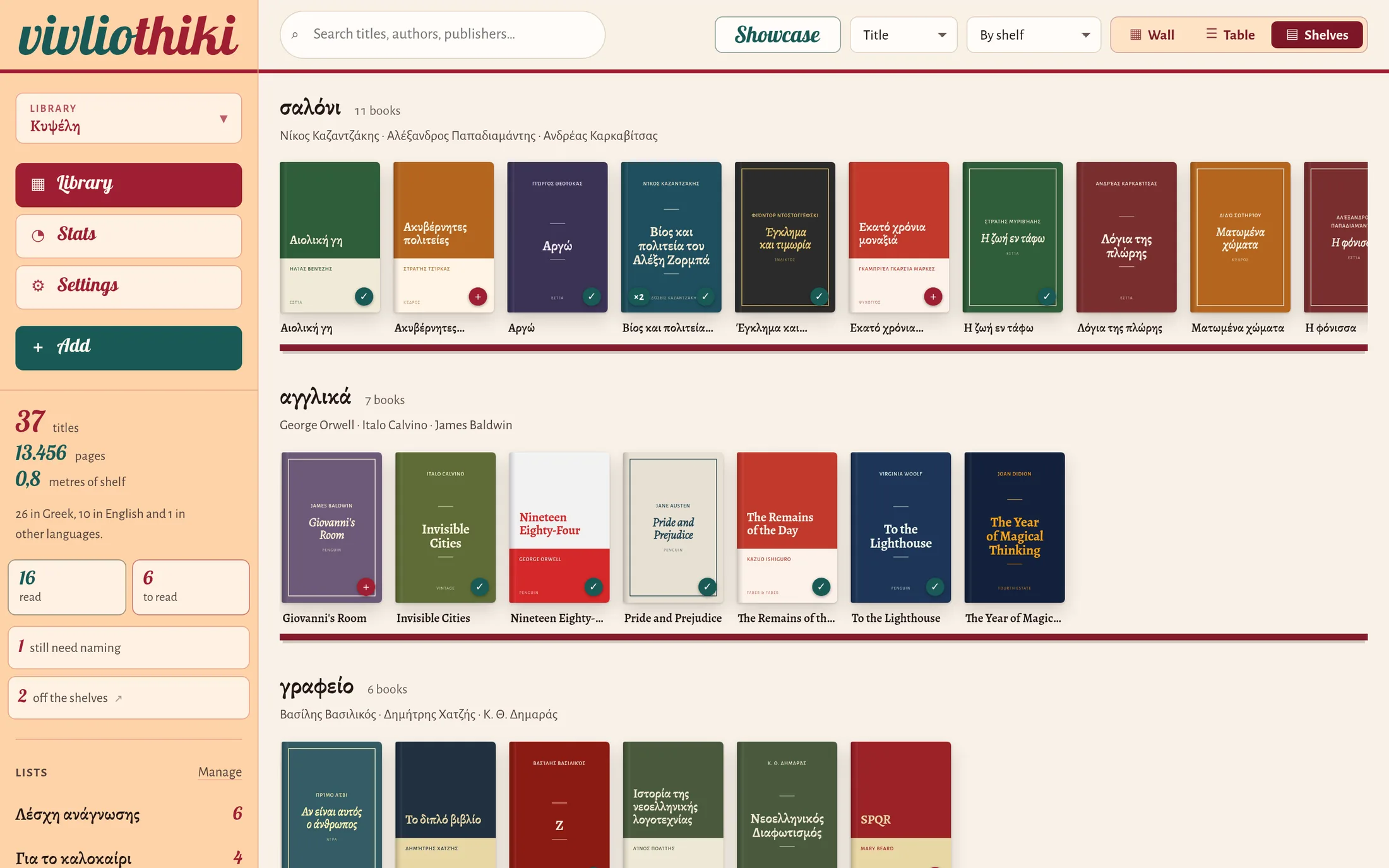
Three ways of looking at your books, in three small buttons at the top right. Wall is the familiar one, all the covers side by side. Table is a table you can sort by any column — tap its heading. Shelves arranges the books into bookcases: by the shelves you have recorded, or by author, publisher, subject, decade, language, or A–Ω. Tap a bookcase’s name to see all of its books.
6 · finding books
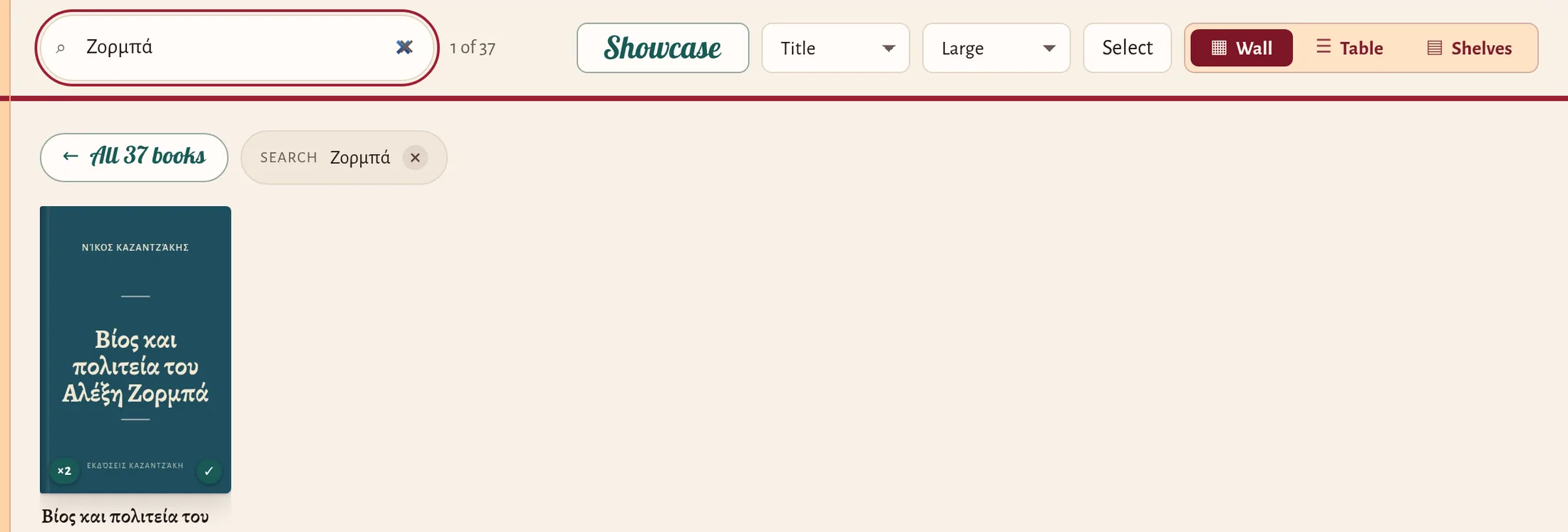
Start typing in Search and the results narrow with every letter, wherever you are — the wall, the table, the shelves, even Stats. What is narrowing the view shows as small labels under the toolbar, and ← All 37 books, always there, takes you back to the whole library. The read and to-read figures, the lists in the menu, and the links on a book’s page are searches too, and work the same way.
7 · several books at once
Press Select and tap the covers you want. A bar appears at the bottom with what you can do to all of them at once:
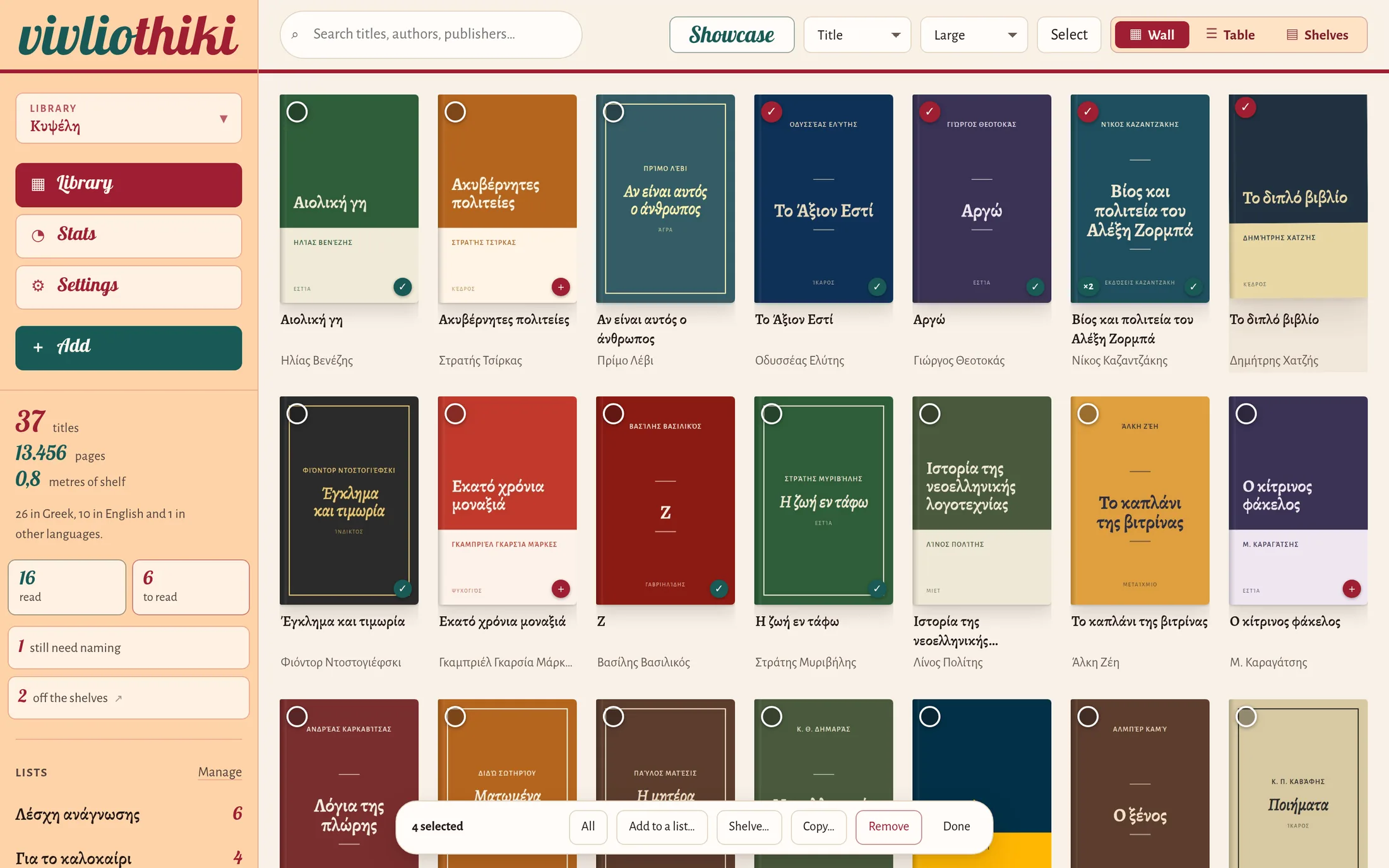
- Add to a list… — an existing list, or a new one.
- Shelve… — put them all on a shelf, or take them off any shelf.
- Copy… — copy them all to another of your libraries.
- Remove — mark them On loan, To give or Gone; an Undo appears for a few seconds afterwards, just in case.
- All, None and Done do what they say.
8 · lists and shelves
A shelf is where a book stands — the living room, the study, the bedside table — and a book has one. A list is any company you like — a book club’s readings, a prize shortlist, books for the summer — and a book can be on many.
- Shelves, three ways: in a book’s Edit, with Shelve… on several selected books, or with Shelving into while you scan.
- Lists, three ways too: with Add to a list… on several selected books, from the Lists button on a book’s page, or by loading a list you keep in a spreadsheet (Settings › Lists).
- Both are renamed in Settings; give a list or a shelf the name of one that already exists and the two merge.
9 · off the shelves
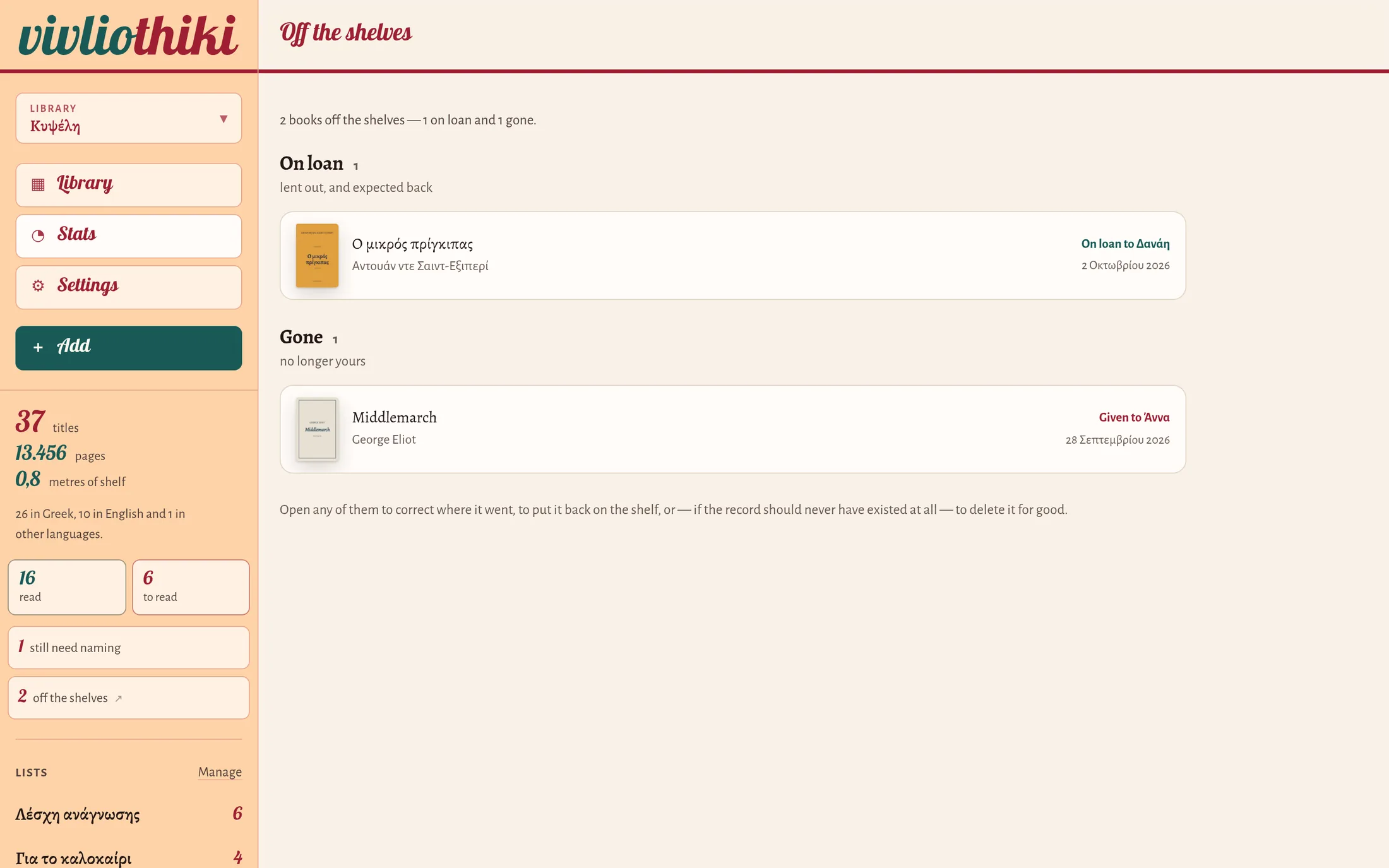
A book you lend, set aside to give away, give, sell or lose is taken off the shelves, not deleted: its marks and its history stay, and the wall and the figures stop counting it. off the shelves, in the menu, shows them grouped as On loan, To give and Gone. Open one to note who has it, if you lent it, to put it back on the shelf, or — if the record should never have existed — to delete it for good.
10 · showcase
Showcase opens a book at random: a way of wandering through your books in no order — to remember ones you had forgotten, to mark what you want to read, or to put a mistake right. Next book brings another, also at random. Inside a list or a search, it draws only from the books there — narrow it to to read, say, and it becomes a way of choosing what to read next.
11 · sharing a library
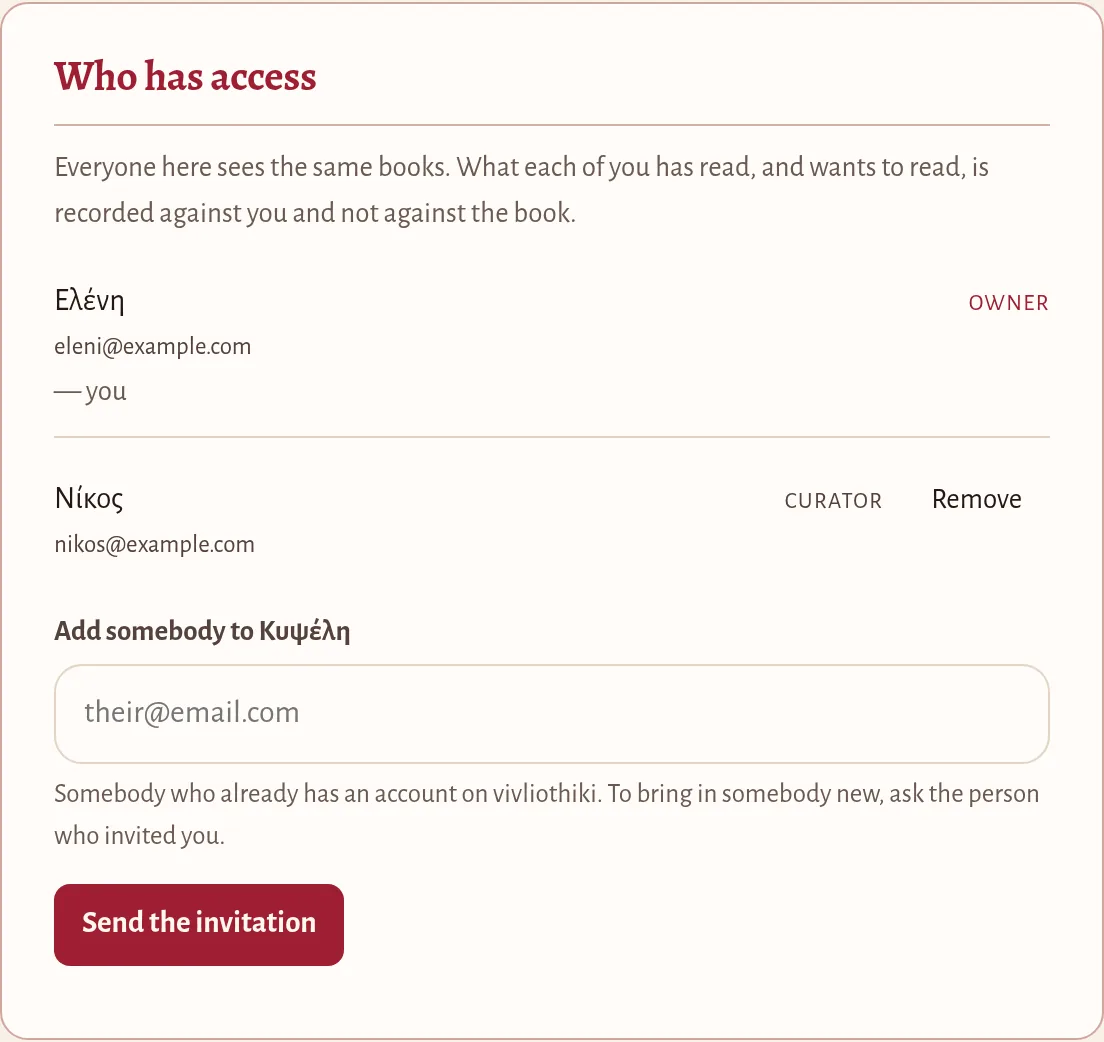
A library can be kept by several people, its curators — you might share yours with someone in your household. Everyone on it sees the same books and can add and edit them; what each person has read, or wants to read, is their own, and the others see it on a book’s page as Read by. The owner of a library adds people in Settings › Who has access, by the email address they use on vivliothiki.
12 · stats
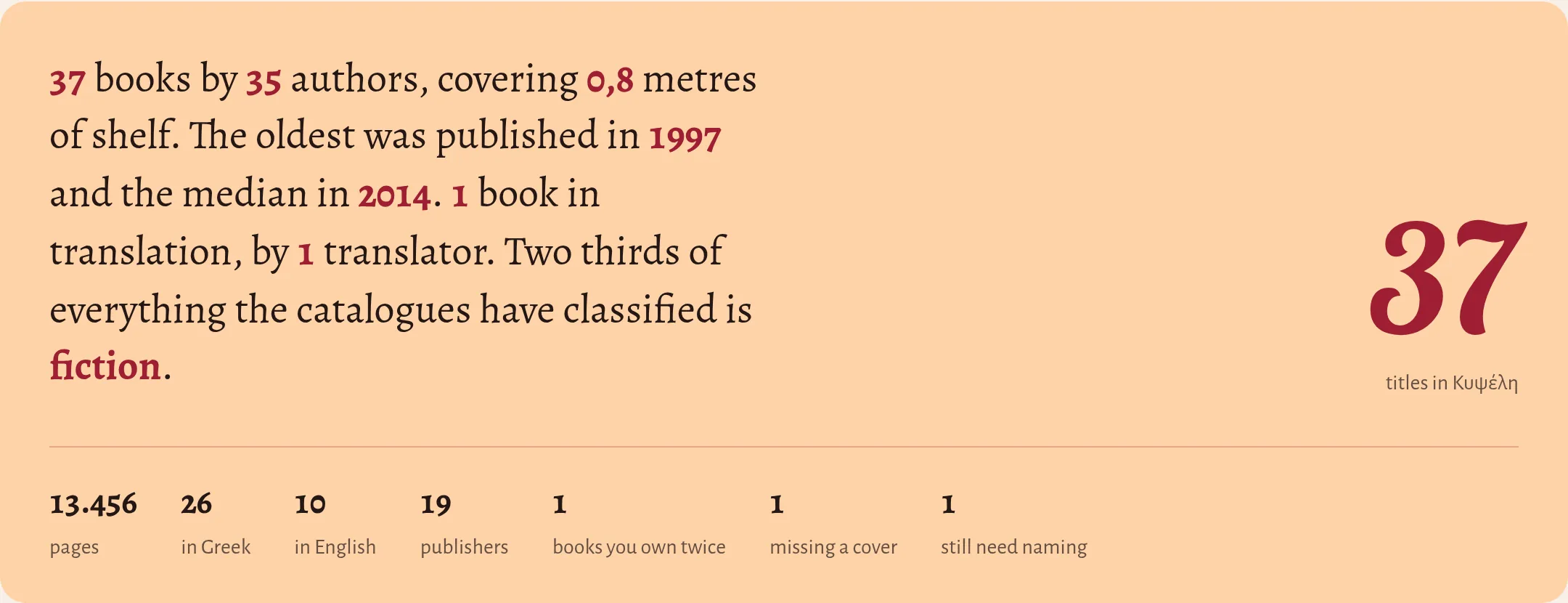
The library in figures: how many books by how many authors, how much shelf they take, the oldest of them, how many are translations, how many pages in all, how much is fiction. Every figure is a link to the books behind it.
Then your reading: what you have marked read and what you mean to read, with a reckoning of the days the first took and the second will. Share as a picture makes a square image (PNG) of these figures, to send if you want to show off a little.
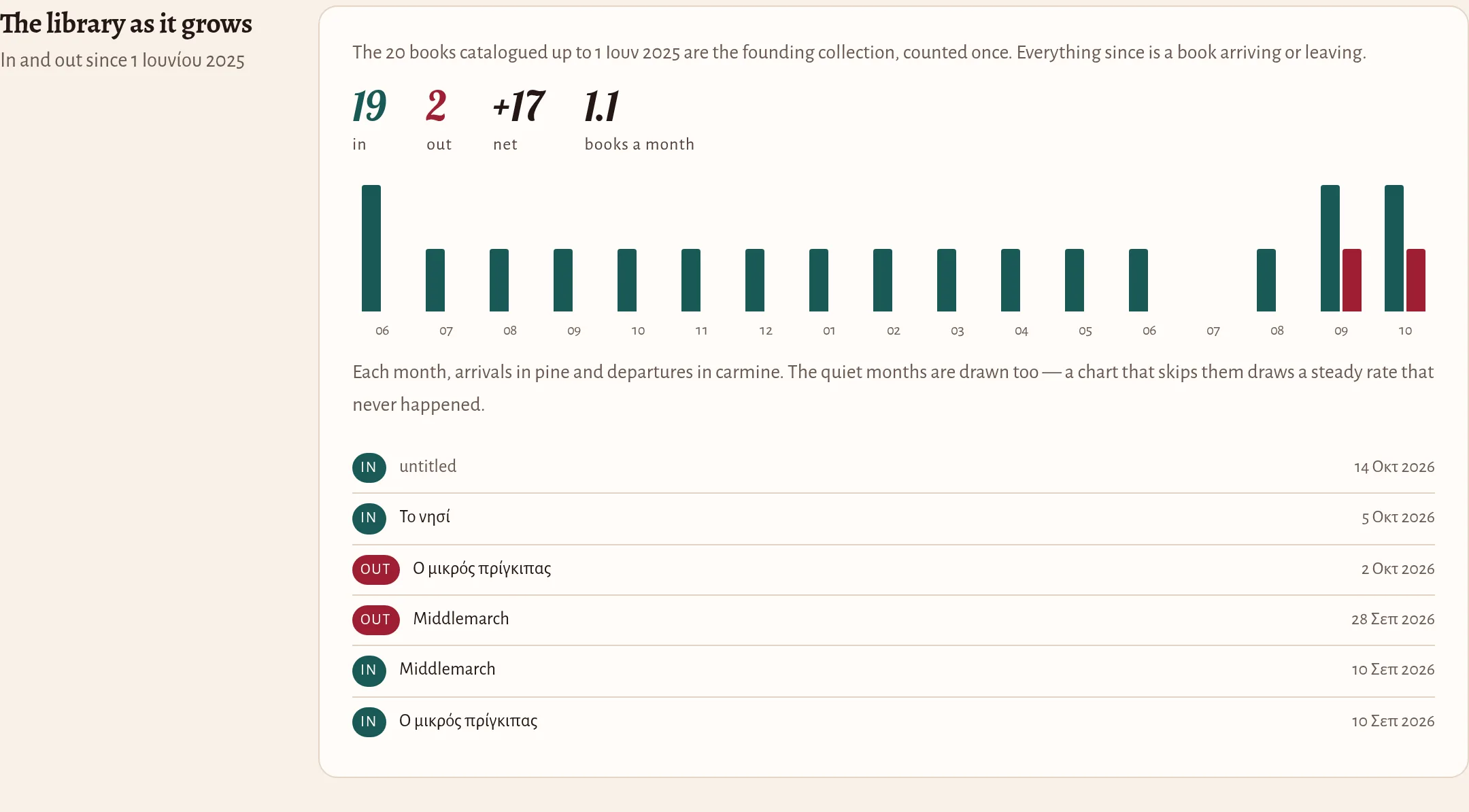
Further down: the library as it grows (books in, in green; books out, in red), books read by year, where they stand, when they were written, what they are about, who wrote and who translated them, publishers, languages, your lists, and what is still not known.
13 · settings, card by card
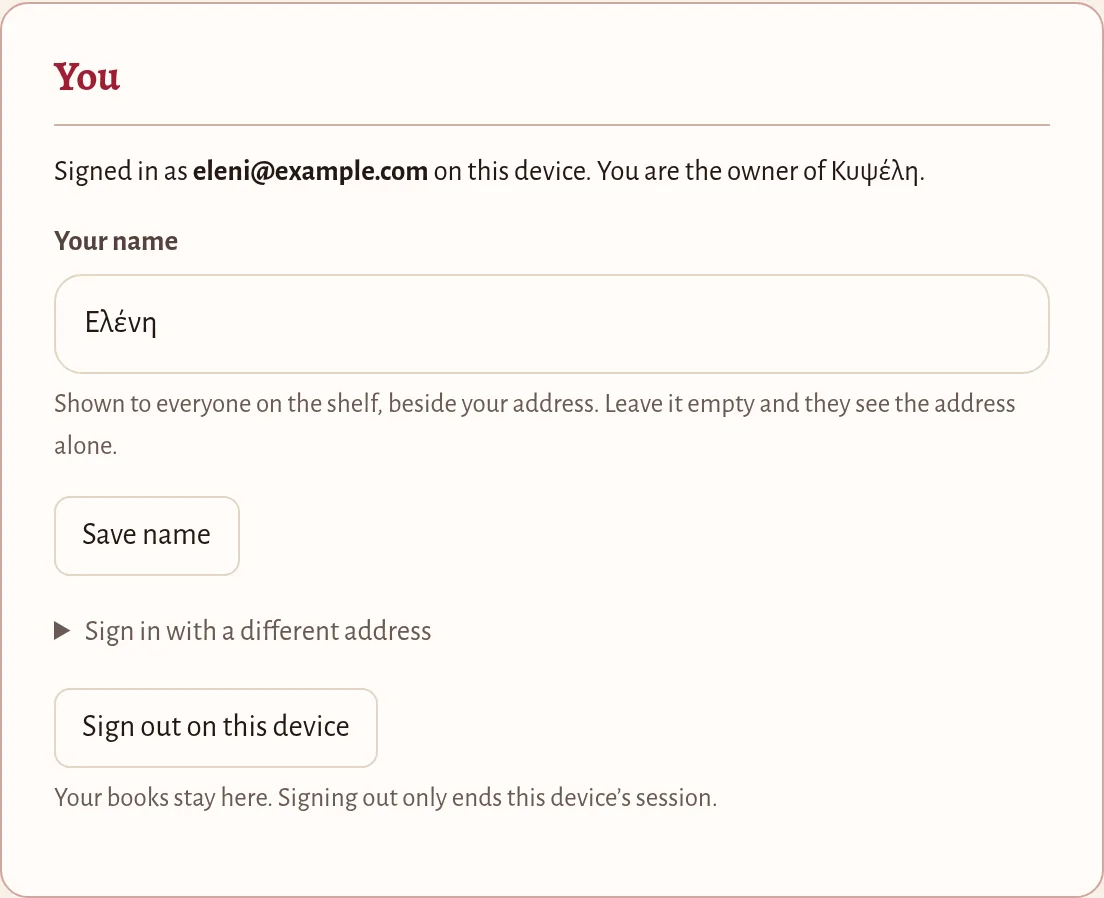
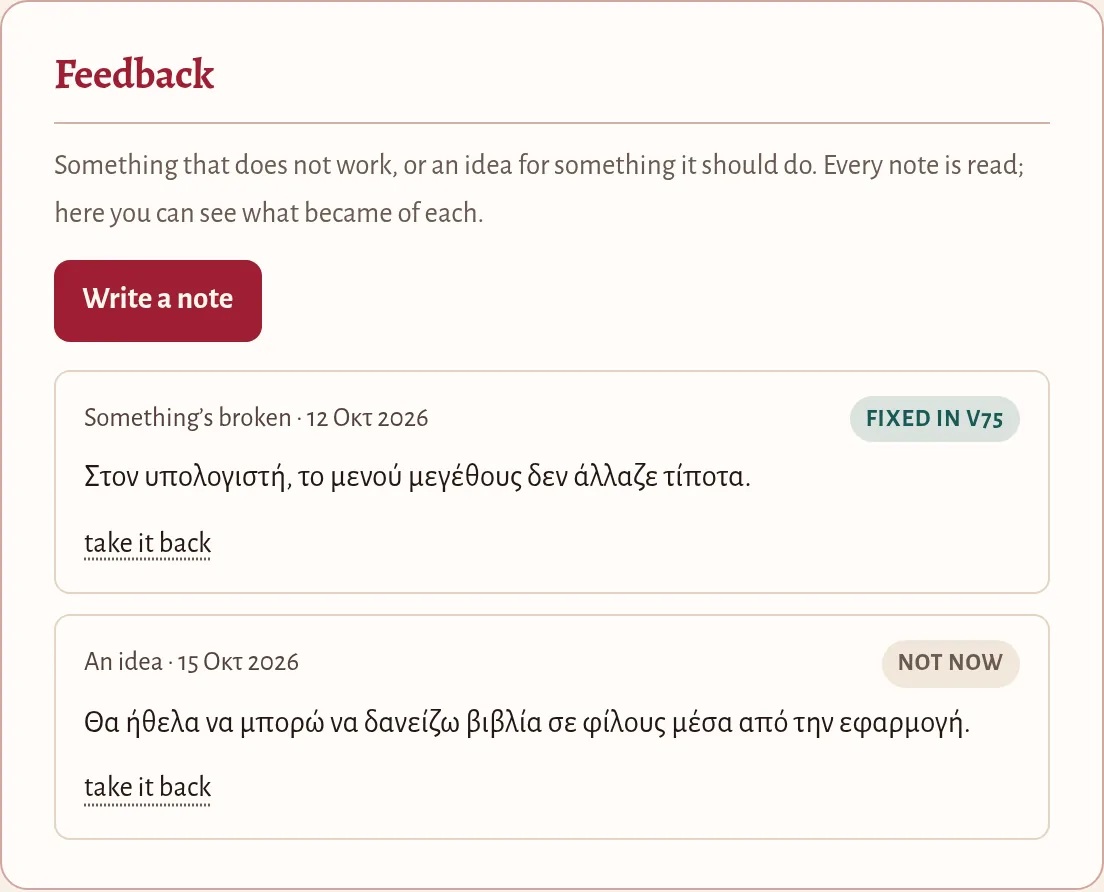
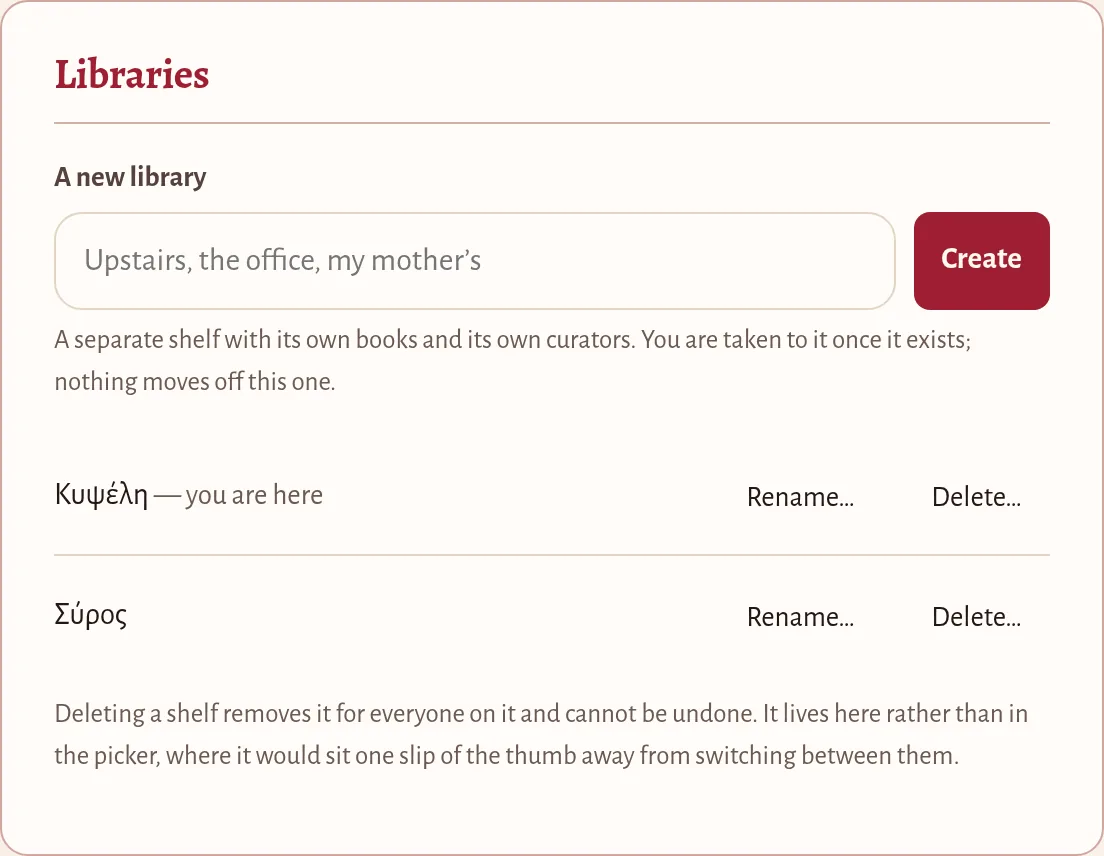
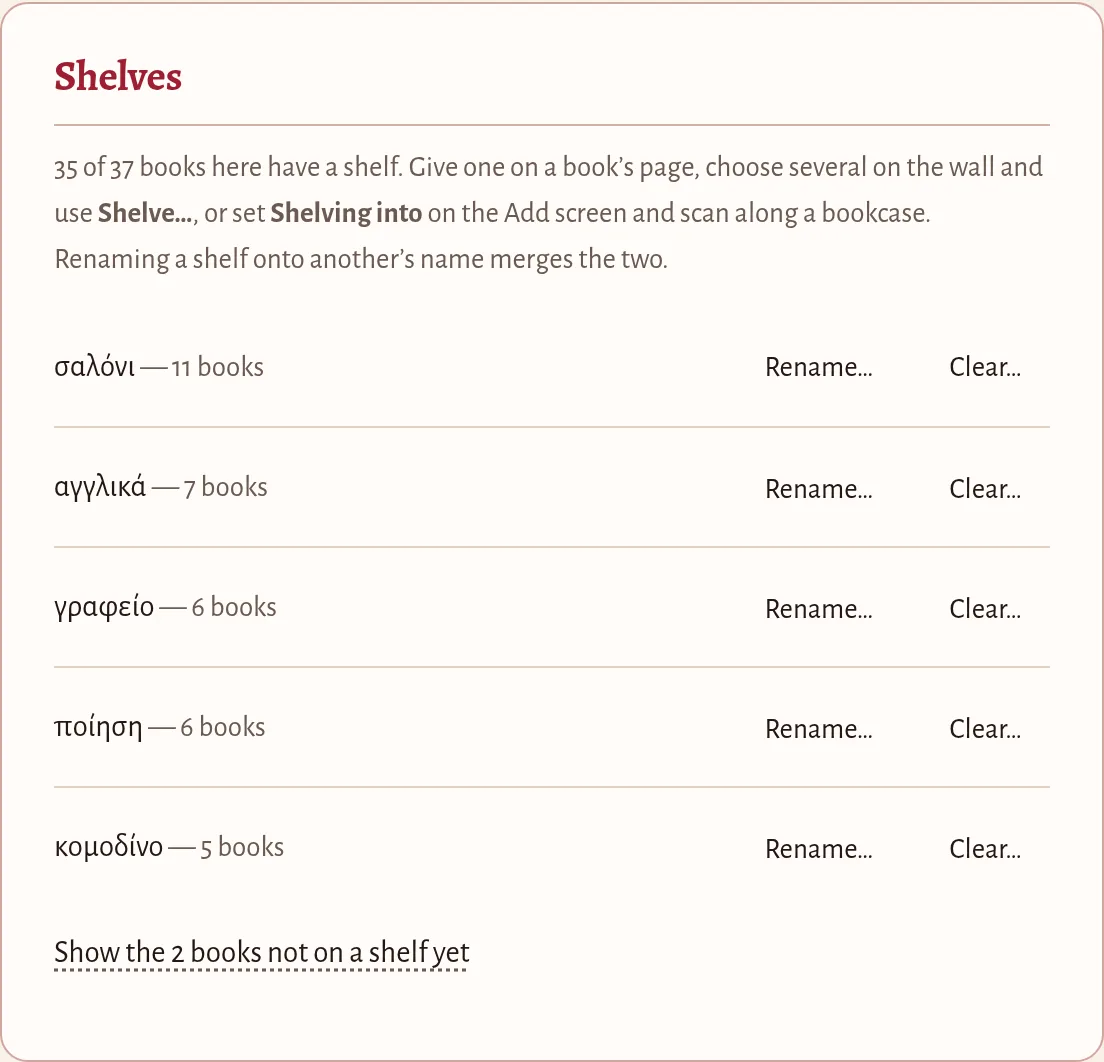
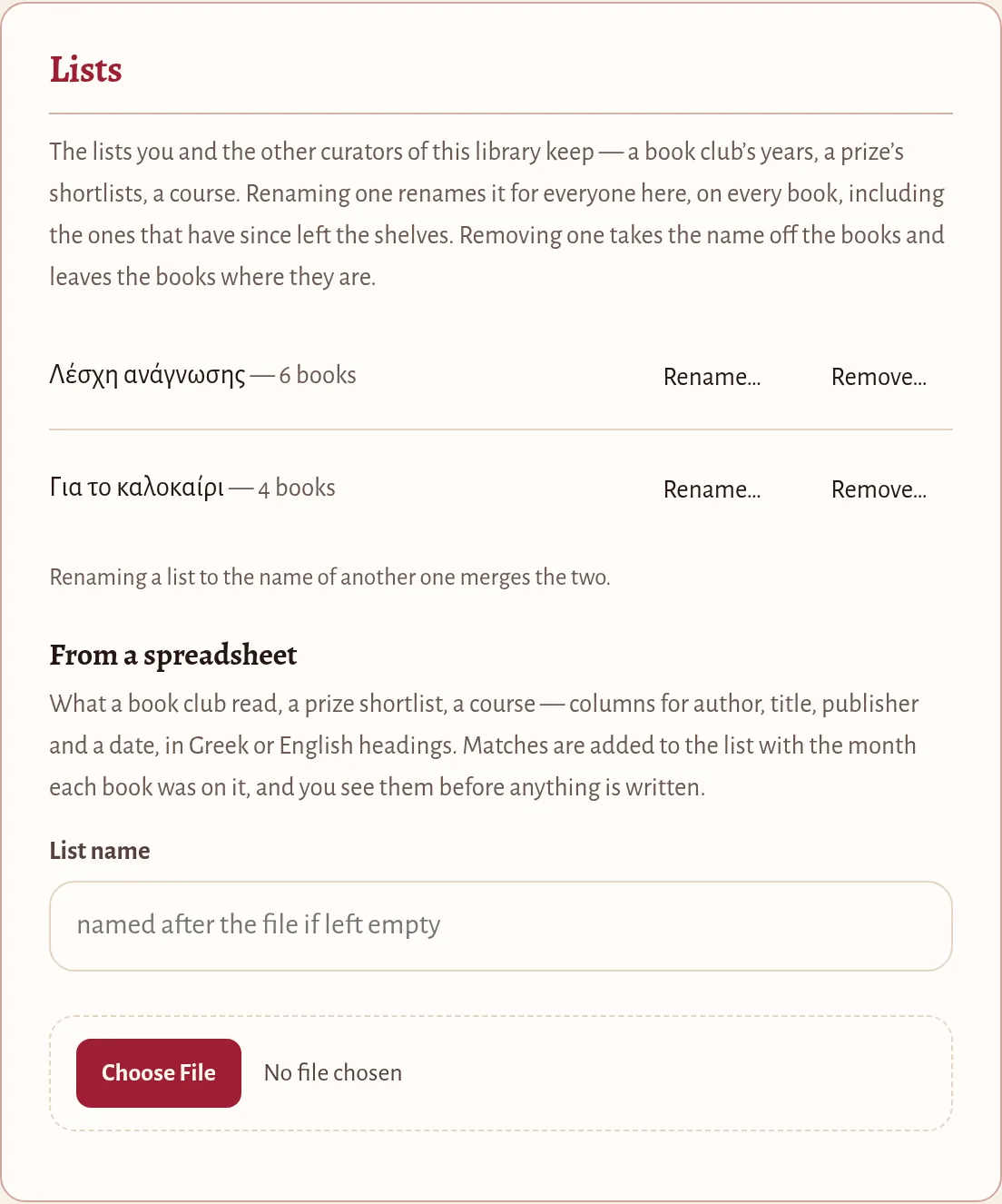
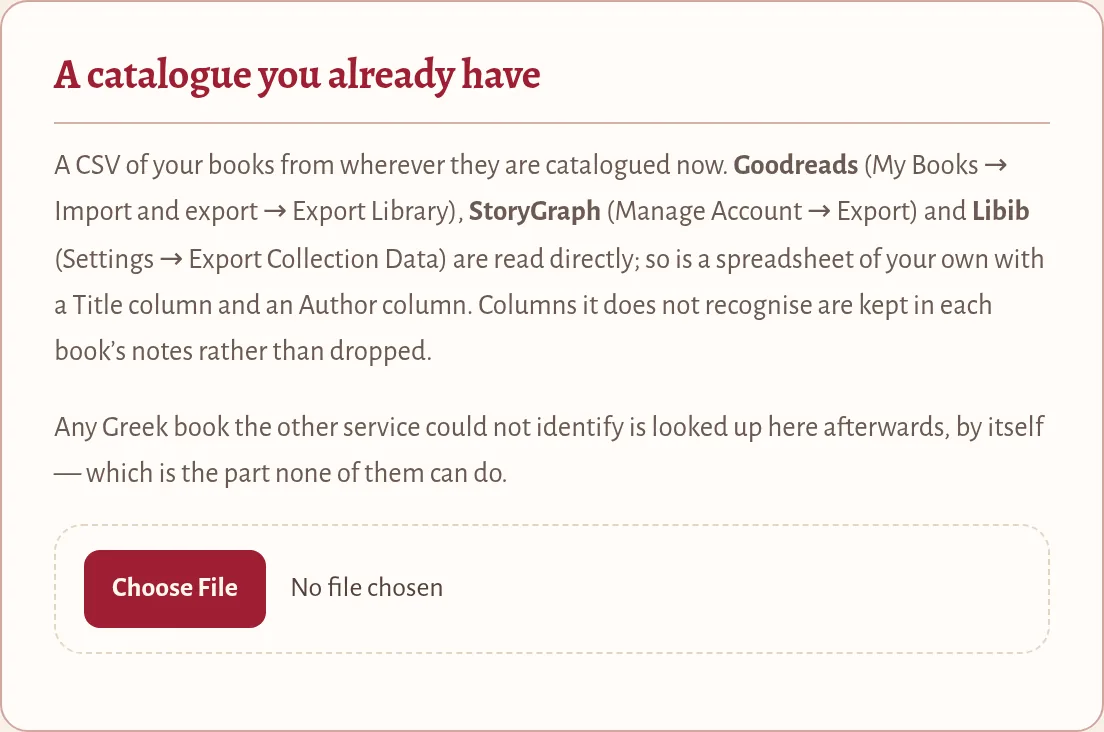
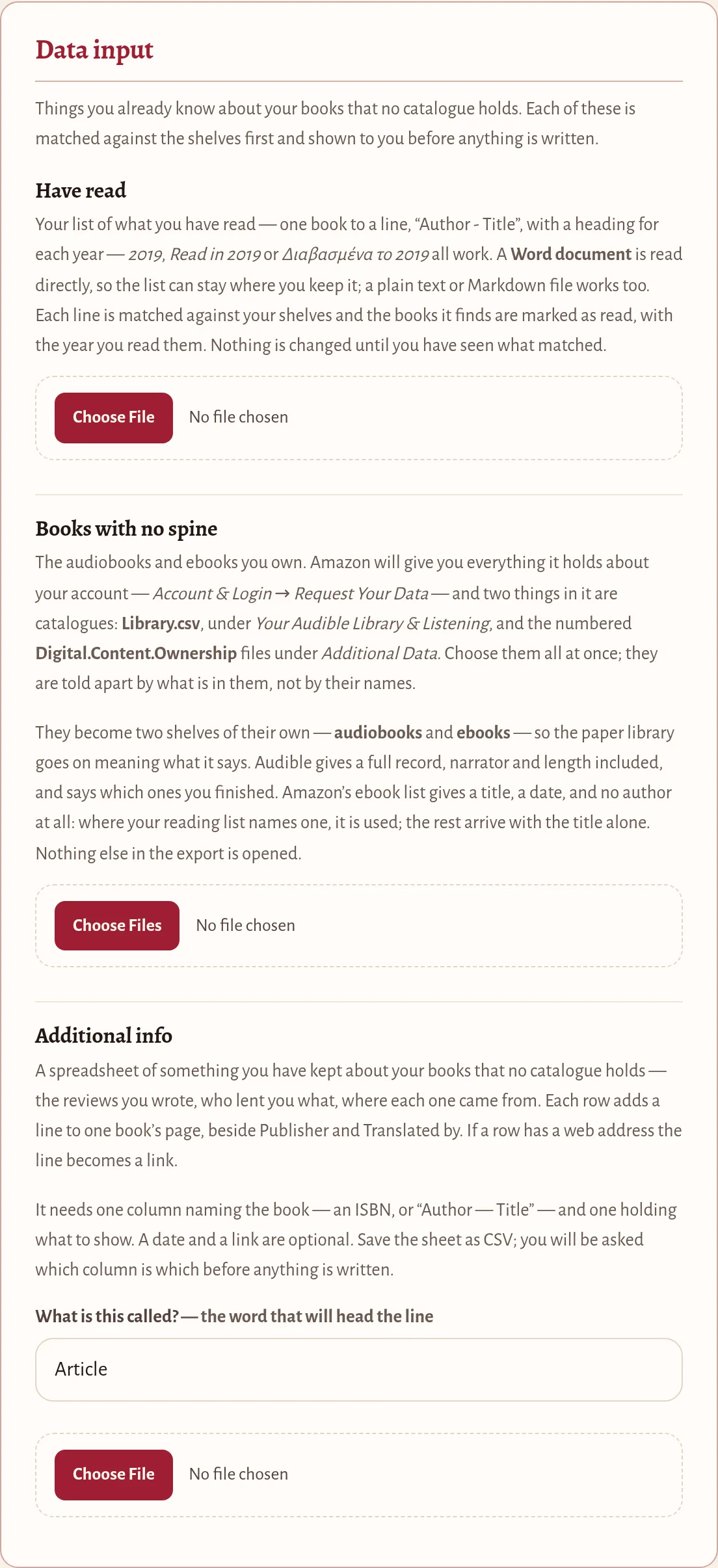
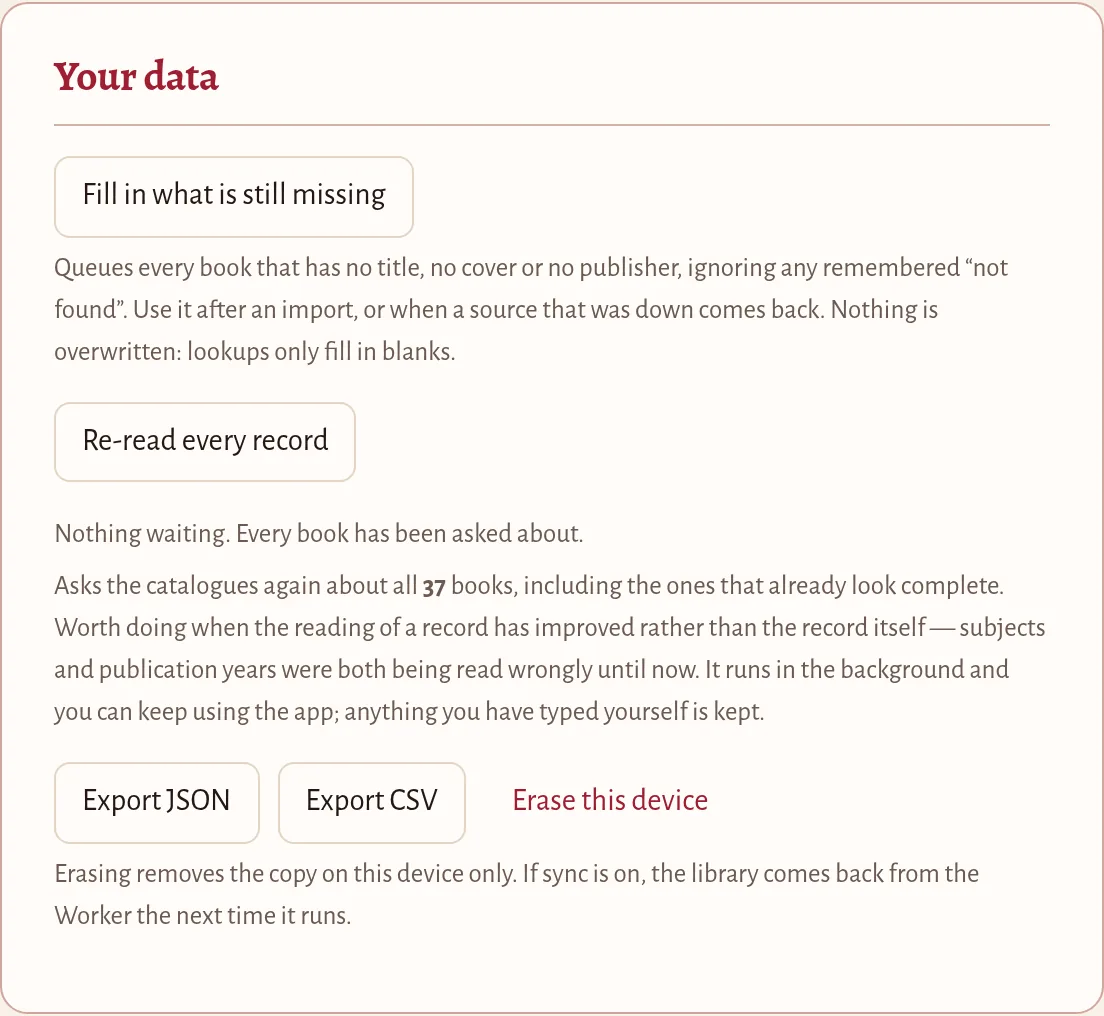
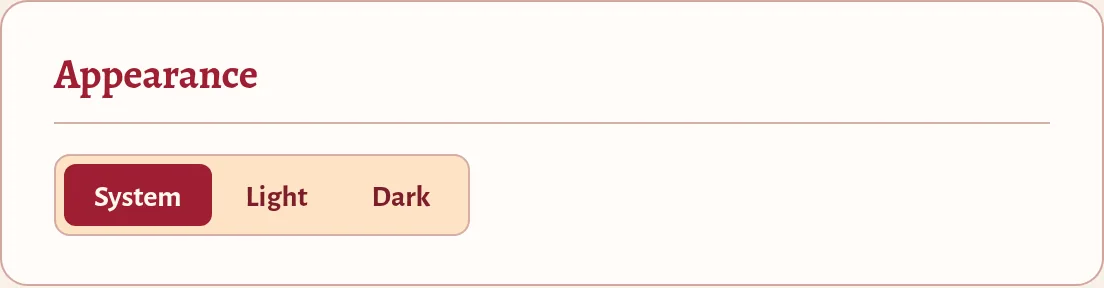
Two more cards are there for when something needs attention: Server (sync now, and when this device last did) and Ask the catalogue again (go back over records read before the catalogues were read as well as they are now).
What vivliothiki keeps about you, and who can see it, is on the privacy page. Who makes it: about.